Convert Chase bank statements to Excel & CSV
Turn your Chase statement PDF into a clean spreadsheet in seconds — free, private, processed entirely in your browser. No upload, no signup.

Manually retyping a Chase statement into a spreadsheet is slow and error-prone. BankStmtConvert extracts every transaction from a Chase PDF — dates, descriptions, debits, credits and balances — and exports it to Excel or CSV, ready for your accounting software. Everything runs locally, so your Chase data never leaves your device.
Convert your Chase statement now →Is it risky to convert a Chase statement here?
No — your data is never exposed. A bank statement is sensitive, which is exactly why BankStmtConvert never uploads it. Your Chase PDF is read and parsed entirely inside your browser using Mozilla's open-source PDF.js — it is never sent to us, stored, or seen by anyone. There is nothing to leak and nothing to delete. You can even disconnect from the internet after the page loads and it still converts.
How to download your Chase statement as a PDF
- Sign in to chase.com or the Chase Mobile® app.
- Open your account → Statements & Documents.
- Download the PDF for the period you need.
How to convert your Chase statement to Excel
- Open the free converter. Go to the BankStmtConvert converter — no signup, no install.
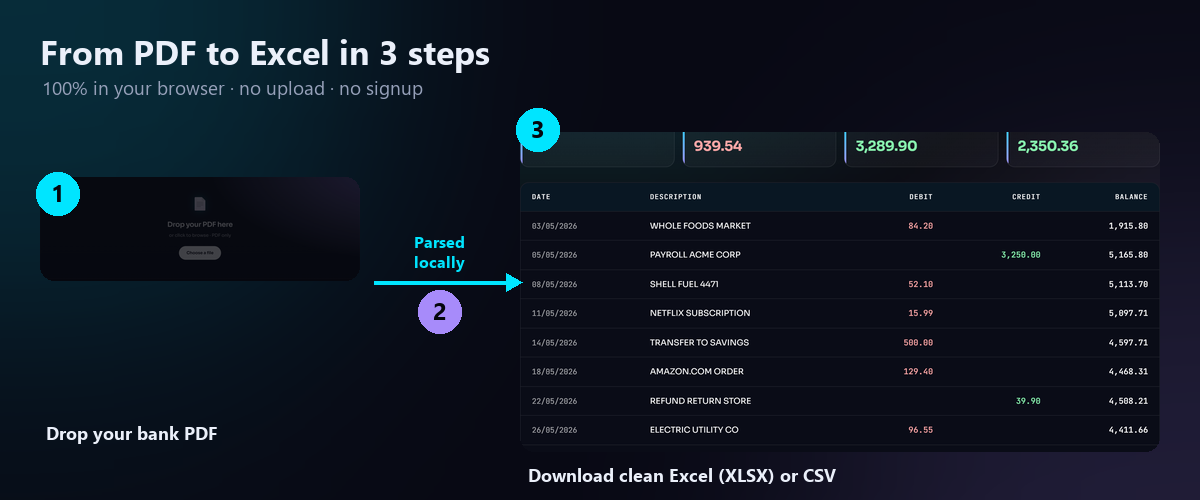
- Drop your PDF. Drag your Chase statement PDF onto the dropzone. Parsing happens instantly and entirely in your browser.
- Download Excel or CSV. Review the table (Date, Description, Debit, Credit, Balance) and download as Excel (XLSX) or CSV — ready for QuickBooks, Xero or Sage.
Open the Chase statement converter →
About Chase statement formatting
Chase checking/savings statements use Date, Description, Amount and Balance; Chase credit-card statements (Sapphire, Freedom, Ink) group purchases, payments and credits. Both are parsed and normalised into Date / Description / Debit / Credit / Balance.
Chase converter — FAQ
Does it work with Chase credit card statements?
Can I convert a combined Chase statement?
Is my Chase statement uploaded?
Other bank statement guides
See all supported bank guides →
BankStmtConvert is an independent tool and is not affiliated with, endorsed by, or sponsored by Chase or any bank. Bank names are used only to describe compatibility; all trademarks are the property of their respective owners. Always review the extracted data against your original statement before relying on it.